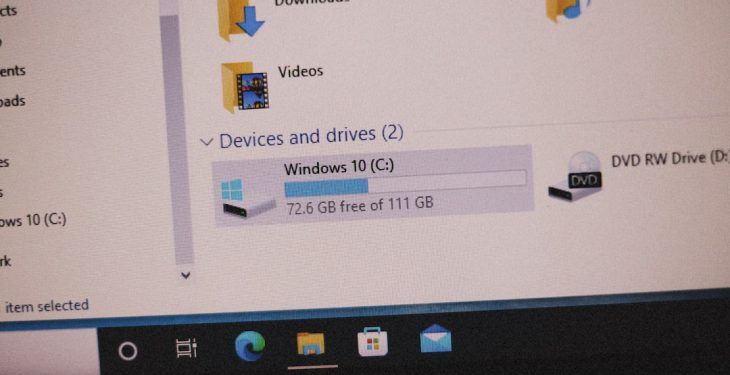
Streaming is fun. Whether you’re gaming, vlogging, or reacting to viral videos—Streamlabs makes it easy. But suddenly, your scenes are gone, or you want to copy your setup to a new computer. Panic time, right? Not so fast! We’re going to find out exactly where your Streamlabs scene collections are stored.
TL;DR: Your Streamlabs scene collections are stored in a hidden folder on your computer, usually within the AppData directory. They’re saved as JSON files, which makes them easy to back up and transfer. You can also export and import them manually for extra safety. Let’s keep those hours of layout tweaking safe!
What Are Scene Collections?
Before we dive into folders and file names, let’s break this down.
- Scenes are what you show your viewers: webcam, browser, alerts, etc.
- Scene Collections are groups of those scenes. Think of them as folders containing your whole stream layout.
If you ever switch between gaming and podcasting, each with its unique setup, you likely use multiple scene collections. Losing these is like losing a file folder stuffed with work!
So… Where Are They?
Streamlabs stores your scene collections somewhere a little tricky to find. They aren’t hanging out in your Documents folder. They’re tucked deep in your user folder.
Here’s the Default Path on Windows:
C:\Users\YourUsername\AppData\Roaming\slobs-client\
You’ll want to swap out “YourUsername” with—you guessed it—your actual Windows username. Also, the AppData folder is hidden by default. No worries, though. We’ll show you how to uncover it.
How to Reveal the AppData Folder:
- Open File Explorer
- Click the “View” tab at the top
- Check the box that says “Hidden items”
Now that you’re in, look for a file called something like:
user-data.json
But wait—this file includes more than just scene collections. It stores various settings, sources, and local layouts. Your specific scene collections are found in slightly different parts depending on how Streamlabs has been updated recently.
Inside the JSON Files
Any time you make a new scene or update one, Streamlabs updates certain JSON files to save those changes. JSON stands for “JavaScript Object Notation”—but don’t let that intimidate you. Think of them as notepad files with all your stream settings formatted in code.
If you’re feeling daring, you can open these with Notepad or any text editor. Be careful, though! A wrong edit can break your setup.
Want an Easier Way? Export It!
Luckily, Streamlabs gives you a much easier way to save your scenes.
Here’s how to export scene collections manually:
- Open Streamlabs.
- Click on the top left hamburger menu (three lines).
- Select “Scene Collections.”
- Click “Manage All.”
- Find the one you want and choose “Export.”
This creates an .overlay file. Super portable, easily backed up. Perfect for jumping between computers or preventing disasters.
Backing Up Automatically
If you’re a person who forgets to backup (hey, no judgment), here’s a trick:
- Sync your AppData folder with a cloud service like Dropbox or OneDrive.
- Or use backup software to copy the slobs-client folder weekly.
Better safe than sorry. One corrupt setting or update glitch can wipe your scenes.
What About Mac?
Streamlabs is primarily designed for Windows, so if you’re on a Mac, chances are you’re using OBS Studio instead, which stores files differently. But for the few Mac users who have access via workarounds or virtual machines—your scene data will still be somewhere in the user’s Library folder under application support.
Restoring from Backup
If you backed up your scene files and reinstalled Streamlabs on a new machine, here’s what to do:
- Locate your backup JSON or .overlay file.
- Place it back in the original “slobs-client” folder OR
- Use the “Import” option under Scene Collections settings.
A restart of Streamlabs might be needed after this. But just like magic—everything should be back the way it was.
Oops! I Didn’t Back Up…
If you’re reading this after a crash or lost file—don’t worry. There still might be hope.
Try these steps:
- Check Recycle Bin for any accidentally deleted files.
- Use Windows File History (if enabled).
- Try third-party recovery software like Recuva for deleted JSONs.
Sometimes, even temporary restores can bring back enough data to rebuild.
Pro-Tips for Scene Safety
- Name Your Scene Collections Clearly! Avoid stuff like “Scene1” or “TestSetup.”
- Schedule Midweek Backups. Most people stream on weekends, so back up midweek.
- Use External Storage. Flash drive, SSD, or even email the overlay file to yourself.
In Conclusion
Scene Collections are the DNA of your stream. Knowing where they live means you’re in control. You can clone them, move them, or protect them like the valuable creations they are.
So go forth, backup your streams, and never fear a system crash again!
Quick Recap:
- Scene collections are stored in C:\Users\YourUsername\AppData\Roaming\slobs-client\.
- You can export them as .overlay files for easy sharing or backups.
- Backing up files can save you from disaster if Streamlabs ever glitches.
- You can restore or even try to recover deleted scenes with tools.
Happy streaming!
