For streamers who incorporate live communications with their community or fellow gamers, having Discord audio in your livestream can significantly enhance viewer engagement. If you’re using Streamlabs and wondering how to effectively integrate Discord audio as a source, you’re in the right place. Whether you’re streaming games, podcasts, or collaborative content, ensuring your audience hears everyone clearly is essential.
TL;DR (Too Long; Didn’t Read)
To include Discord audio in your Streamlabs stream, you’ll need to configure your computer’s audio settings properly. Use a virtual audio cable or set your default system output to route audio through a source captured by Streamlabs. Adding Discord as an audio source allows your viewers to hear both you and your collaborators. Be sure to test your audio before going live!
Why Add Discord to Streamlabs?
Streamers commonly use Discord to communicate with other players, guests, or collaborators during a livestream. Adding Discord as an audio source ensures those voices are heard on the stream. Without it, your audience might only hear you, creating confusion and disconnection from the context of your content.
What You’ll Need
Before diving into setup, make sure you have the following:
- Streamlabs – Installed and updated
- Discord – Installed and configured
- Virtual audio cable software (like VB-Audio Cable) – To route sound appropriately
- Headphones – To prevent echo and feedback
Step-by-Step Guide: Setting Discord as an Audio Source in Streamlabs
1. Download and Install a Virtual Audio Cable
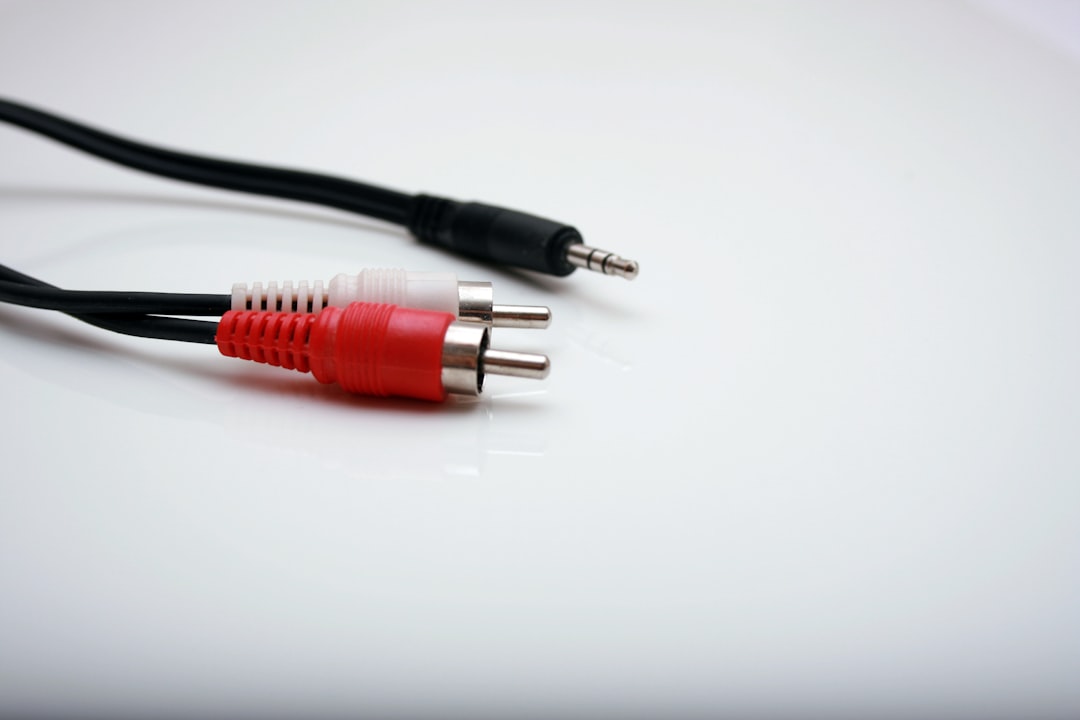
Streamlabs doesn’t natively separate out Discord audio, so a virtual audio cable is essential. One popular choice is VB-Audio Cable, a free utility that lets you route audio between applications.
Here’s how to get it:
- Visit the official VB-Audio website.
- Download and install the virtual audio cable setup.
- Reboot your system if prompted after installation.
2. Configure Discord to Use the Virtual Audio Cable
Next, you’ll direct Discord’s output through the virtual cable so that Streamlabs can capture it:
- Open Discord.
- Go to User Settings → Voice & Video.
- Under Output Device, select VB-Audio Cable.
3. Set Virtual Audio Cable as a Source in Streamlabs
Now that Discord audio is routed through the virtual audio cable, it’s time to capture that in Streamlabs:
- Open Streamlabs.
- Navigate to the Audio Mixer and click the gear icon.
- Select Advanced Audio Settings.
- Choose to add a new Audio Input or Device.
- Set it to receive audio from VB-Audio Cable.
Label the source clearly—something like “Discord Audio”—so it’s easier to manage while streaming.
4. Balance Audio Levels
With Discord now being routed into Streamlabs, fine-tuning your audio mix is essential. Use the mixer to:
- Lower or raise Discord’s volume relative to your mic and game audio.
- Mute Discord during private conversations or breaks.
- Apply noise suppression using filters for a better listening experience.
5. Perform a Test Stream
Before going live, always test your setup:
- Create a private stream or record a local test.
- Do a full soundcheck, including your mic, game audio, and Discord audio.
- Ask a friend to join Discord and talk during the test to make sure it’s picked up.
This step helps avoid embarrassing audio mishaps and ensures your audience gets the best quality experience.
Alternative Method: Using Default System Output
If the virtual audio cable method feels too technical, you may also use your system’s default audio device:
- Set your system’s default playback output to your speakers or headphones.
- Make sure Discord is also using that same default device for output.
- In Streamlabs, under the mixer settings, ensure you’re capturing the default desktop audio.
While this method is simpler, it lacks the control and flexibility that virtual audio routing offers. For example, you won’t be able to separate Discord volume from game volume in your stream mix.
Tips and Best Practices
- Use Push-to-Talk in Discord: This can help reduce background noise from other speakers while live.
- Communicate with Guests: Let them know they’re live, so they maintain appropriate mic discipline.
- Use Headphones: Prevents your mic from picking up other people’s voices through speakers.
- Name Your Audio Sources: Labeling sources like “Game Audio,” “Mic,” and “Discord” will help you manage levels better.
- Monitor Audio with Headphones: This allows you to ensure everything is being captured correctly.
Common Troubleshooting Issues
Here are a few things you might run into and how to fix them:
- Discord isn’t being heard in the stream – Check that Discord’s output is set to the virtual cable and that audio routing is accurate in Streamlabs.
- Viewers hear game audio but not your friends – Double-check that the Discord audio source is unmuted in Streamlabs.
- Echo or feedback loops – Make sure you’re using headphones and avoid setting both input and output to the same virtual cable.
Conclusion
Capturing Discord audio in Streamlabs is crucial for streams with collaboration or multiplayer interactivity. Thankfully, with a bit of setup time and the right tools like a virtual audio cable, it’s fairly simple to add Discord as a dedicated audio source. This not only boosts the professionalism of your stream but also enhances your viewers’ experience.
FAQs
- Do I need a virtual audio cable to capture Discord audio?
- While not strictly necessary, using a virtual audio cable gives you better control over the audio mix and makes it easier to isolate Discord audio.
- Can I use Streamlabs’ default desktop audio setting instead?
- Yes, but all system audio—including Discord, music, and notifications—will be captured together, reducing your control over each sound source.
- Why is there a delay or echo in Discord audio?
- This usually happens due to audio feedback or poor audio routing. Make sure you’re using headphones and not capturing the same device twice in Streamlabs.
- Is this setup the same for Mac users?
- No, Mac users require different virtual audio routing tools such as Loopback or BlackHole, and steps may vary accordingly.
- Can I mute individual users from Discord in Streamlabs?
- No, audio sourced from Discord comes in as a single stream. You must mute individual users from within Discord itself.
