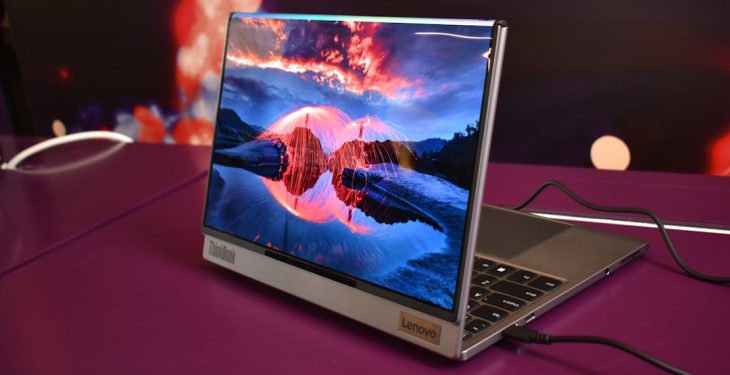
A white spot on your Lenovo laptop screen can be distracting, frustrating, and sometimes alarming. Whether it appears as a tiny bright dot, a cloudy patch, or a faint stain that won’t disappear, display imperfections can interfere with work, streaming, and gaming. The good news? Not every white spot means your screen is permanently damaged. In many cases, the issue can be identified and even fixed with a few troubleshooting steps.
TL;DR: A white spot on a Lenovo laptop screen can be caused by dead or stuck pixels, pressure damage, backlight issues, screen burn-in, or dirt trapped under the display. Start by cleaning the screen and running a pixel test to identify the type of problem. Some issues, like stuck pixels, may be fixable with software tools or gentle techniques, while others, like pressure damage or backlight bleeding, may require screen replacement. Identifying the cause is the key to choosing the right fix.
What Causes a White Spot on a Lenovo Laptop Screen?
A “white spot” can mean several different things depending on how it looks and behaves. Before you attempt any solution, it’s essential to determine the underlying cause. Here are the most common reasons:
- Dead pixels – Pixels that no longer display any color and remain white or black.
- Stuck pixels – Pixels stuck on one color, often appearing white.
- Pressure damage – Internal screen damage caused by impact or pressure.
- Backlight bleeding – Uneven light distribution, especially visible on dark backgrounds.
- Screen stains or dirt – Surface grime or internal contamination.
- LCD panel defects – Manufacturing flaws or aging components.
Each issue looks slightly different, so careful observation helps narrow down the problem.
Step 1: Clean the Screen First
Before assuming the worst, make sure the white spot isn’t simply dirt, dust, or residue.
How to properly clean your Lenovo laptop screen:
- Turn off the laptop and unplug it.
- Use a microfiber cloth.
- Lightly dampen the cloth with water or a screen-safe cleaner.
- Wipe gently in circular motions.
- Dry with a separate clean microfiber cloth.
Never spray liquid directly onto the screen. Excess moisture can seep into the edges and cause internal damage.
If the white spot disappears after cleaning, you’re in luck. If not, move to diagnostic steps.
Step 2: Check for Dead or Stuck Pixels
Pixels are tiny light units that form the images on your display. When a pixel fails, it may become stuck on white or another color.
How to Test for Pixel Problems
- Open a solid black image in full screen.
- Then test with red, green, blue, and white backgrounds.
- Observe whether the spot changes color.
If the spot stays white on every background, it’s likely a stuck or dead pixel.
If the spot disappears on certain colors, it may be a subpixel issue.
How to Fix a Stuck Pixel
Stuck pixels can sometimes be revived.
Method 1: Pixel Fixing Software
Use an online pixel repair tool that rapidly cycles colors to stimulate the pixel. Let it run for 15–30 minutes.
Method 2: Gentle Pressure Technique
- Turn off the laptop.
- Wrap a soft cloth around your finger.
- Gently press the area with the stuck pixel.
- Turn the laptop back on.
Be extremely careful. Too much pressure can permanently damage the display.
Note: Dead pixels (completely non-responsive) usually cannot be repaired and may require panel replacement.
Step 3: Look for Pressure Damage
If the white spot looks like a cloudy or bright patch that doesn’t match pixel size, pressure damage may be the cause. This often happens when:
- The laptop is squeezed in a bag.
- An object presses against the screen.
- The lid is closed with something inside.
- The screen experiences accidental impact.
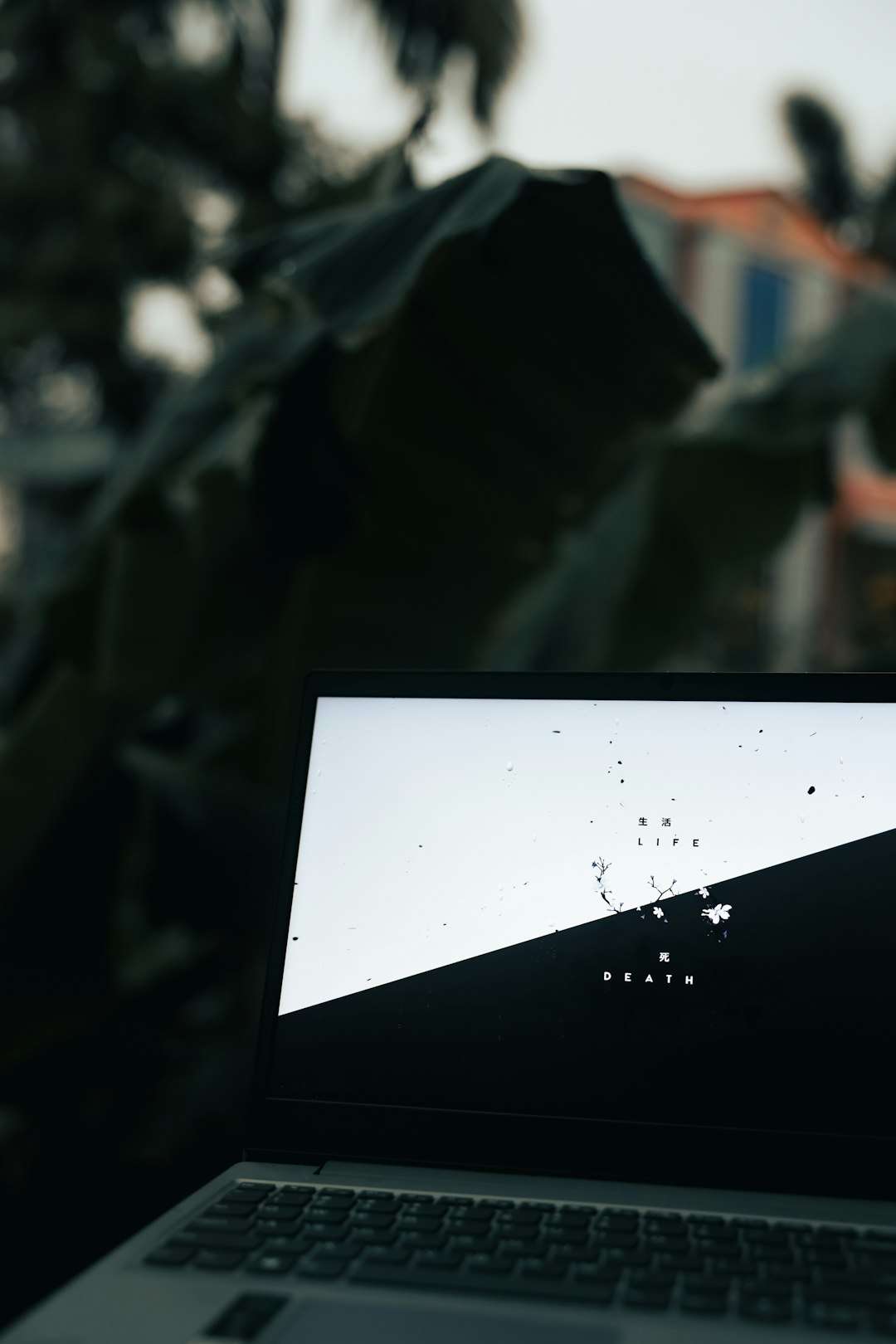
Pressure damage creates irregular shapes and sometimes includes faint rainbow effects or discoloration.
Unfortunately, this type of damage cannot be fixed with software. The only permanent solution is replacing the LCD panel.
Is Replacement Worth It?
It depends on:
- Your Lenovo model
- Warranty status
- The size and severity of the damage
- Repair cost vs. laptop value
For newer models, screen replacement is often worth it. For older units, you may consider upgrading.
Step 4: Identify Backlight Bleeding
Backlight bleeding appears as brighter areas near the edges or corners, especially noticeable on black backgrounds.
This issue:
- Is common in IPS displays
- Is often visible in dark rooms
- May look like uneven white glow
Backlight bleed is typically a manufacturing characteristic rather than damage. If it’s severe and your laptop is under warranty, Lenovo may replace the panel.
There is no reliable DIY fix for backlight bleeding.
Step 5: Check for Internal Screen Stains
Sometimes white spots result from moisture or contaminants trapped inside the LCD layers.
Symptoms include:
- Cloudy appearance
- Irregular shapes
- Changes over time
Moisture damage can occur if:
- The laptop was exposed to humidity.
- Liquid was spilled nearby.
- Cleaning solution seeped inside.
In minor cases, the stain may gradually fade as moisture evaporates. In severe cases, panel replacement is required.
How to Prevent White Spots in the Future
Prevention is always better than repair. Here are practical tips to protect your Lenovo screen:
- Use a padded laptop sleeve when carrying your device.
- Avoid placing heavy objects on top of the laptop.
- Never press on the display while cleaning.
- Open and close the lid gently.
- Keep liquids away from the screen.
- Close the laptop carefully and ensure nothing is on the keyboard.
Small protective habits go a long way in preventing costly damage.
When to Contact Lenovo Support
You should contact Lenovo support if:
- Your device is under warranty.
- The white spot appeared without impact or misuse.
- The spot is spreading.
- The issue affects productivity.
Most Lenovo laptops include a limited warranty covering manufacturing defects. Pixel policies vary, meaning a certain number of dead pixels may be required before warranty replacement applies.
Should You Replace the Screen Yourself?
If you’re technically inclined, DIY screen replacement is possible. Replacement panels are often available online.
Pros:
- Lower cost than manufacturer repair
- Faster turnaround
Cons:
- Risk of further damage
- Voiding warranty
- Incorrect panel compatibility
If unsure, professional repair is the safer option.
How Much Does Screen Replacement Cost?
Typical price ranges:
- Standard HD panel: $50–$120
- Full HD IPS panel: $80–$180
- High refresh rate or 4K panel: $150–$350+
- Professional labor: $50–$150
Prices vary depending on model and location.
Final Thoughts
A white spot on your Lenovo laptop screen doesn’t automatically mean disaster. In some cases, it’s a harmless stuck pixel that can be revived in minutes. In others, it may indicate pressure damage or backlight issues that require professional repair.
The key is careful diagnosis. Start with cleaning, test for pixel issues, evaluate for pressure damage, and assess whether the problem is cosmetic or functional. Understanding what you’re seeing empowers you to make the right decision—whether that’s running a pixel tool, contacting Lenovo, or investing in a replacement screen.
Your laptop display is one of its most important components. Treat it gently, maintain it properly, and you’ll significantly reduce the chances of dealing with white spots in the future.
