
It can be unsettling to walk into a dark room and find a computer screen glowing for no apparent reason. Many Windows users have experienced the strange phenomenon of their PC powering on in the middle of the night. While it may feel mysterious or even suspicious, the cause is almost always a scheduled task, system update, or hardware setting that has quietly been configured to wake the machine without the user realizing it.
TLDR: A Windows PC usually turns on at midnight due to scheduled updates, automatic maintenance, wake timers, or network activity. Features like Windows Update, Task Scheduler, and Wake-on-LAN are common culprits. In most cases, it is not a security breach but a system setting configured to run during inactive hours. Adjusting sleep, power, and update settings can typically stop the behavior.
Understanding why this happens requires looking at how Windows handles maintenance and power management behind the scenes. Modern versions of Windows are designed to keep systems updated, optimized, and secure—even when users are not actively working. Midnight is often selected as a default maintenance window because it is assumed most users will be inactive at that time.
Common Reasons a Windows PC Turns On at Midnight
1. Windows Update Automatic Restart
One of the most common explanations involves Windows Update. Microsoft schedules updates to install during non-active hours. If the computer is in sleep mode, Windows may wake it to complete installation tasks or restarts.
By default, Windows sets “active hours” based on usage patterns. If midnight falls outside those hours, the system considers it a safe time to perform maintenance. This behavior is designed to minimize disruption.

How to check:
- Open Settings
- Select Windows Update
- Click Advanced options
- Review Active hours and restart settings
Users can manually adjust active hours or disable automatic restarts to prevent surprise power-ons.
2. Automatic Maintenance
Windows performs Automatic Maintenance tasks daily. These tasks may include:
- System diagnostics
- Security scans
- Disk optimization
- Software updates
The default time for Automatic Maintenance is often set to 2:00 AM, though it can vary. If the computer is asleep, Windows has the option to wake it to run the process.
To check or modify maintenance settings:
- Open Control Panel
- Go to Security and Maintenance
- Select Change maintenance settings
- Uncheck “Allow scheduled maintenance to wake up my computer”
3. Wake Timers
Wake timers are system events that instruct the computer to power on from sleep mode to perform a scheduled task. Applications, updates, and even backup software can create these timers.
Wake timers are not inherently harmful; they are meant to help automate important tasks. However, they are often enabled by default.
To disable wake timers:
- Open Control Panel
- Click Power Options
- Select Change plan settings
- Click Change advanced power settings
- Expand Sleep
- Disable Allow wake timers

For users unsure what woke their computer, Windows provides a command prompt tool. Running powercfg -lastwake reveals what triggered the most recent wake event.
4. Scheduled Tasks in Task Scheduler
Task Scheduler is another frequent source of midnight wake-ups. Many programs automatically create scheduled tasks when installed. These tasks may include update checks, file syncing, or system scans.
To review scheduled tasks:
- Search for Task Scheduler in the Start menu
- Browse the Task Scheduler Library
- Look for tasks with triggers set to run at night
Each task has a Conditions tab where a setting called “Wake the computer to run this task” may be enabled. Disabling it can prevent unexpected power-ons.
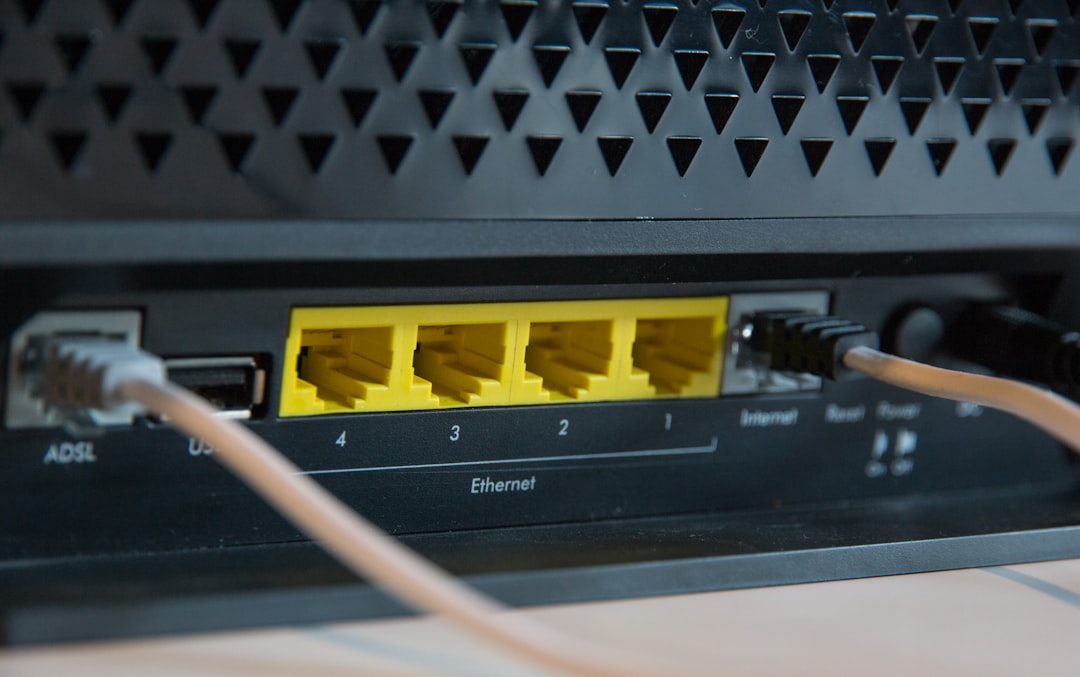
5. Wake-on-LAN
Wake-on-LAN (WoL) is a networking feature that allows a device to power on remotely when it receives a specific network signal. This feature is commonly used in business environments but may also be enabled on home systems.
If the PC is connected to a network, routers, other devices, or even software updates may accidentally trigger WoL signals.
To disable Wake-on-LAN:
- Open Device Manager
- Select Network adapters
- Right-click your network device and choose Properties
- Go to the Power Management tab
- Uncheck “Allow this device to wake the computer”
6. BIOS or UEFI Settings
In some cases, the cause lies deeper than Windows itself. Motherboard firmware (BIOS or UEFI) may have automatic power-on schedules configured. Some systems include:
- RTC alarm power-on settings
- Automatic boot after power loss
- Hardware-level wake timers
Accessing the BIOS during startup allows users to review and disable these features.
How to Identify What Woke the PC
Instead of guessing, users can determine the exact trigger.
- Run powercfg -lastwake in Command Prompt
- Run powercfg -waketimers to see active wake timers
- Check the Event Viewer under Windows Logs and System
Event Viewer logs often list the source as:
- Windows Update
- UpdateOrchestrator
- Maintenance Activator
- Network Adapter
Comparison of Common Wake Causes
| Cause | Default Enabled | Common Time | How to Disable |
|---|---|---|---|
| Windows Update | Yes | Outside active hours | Adjust update settings |
| Automatic Maintenance | Yes | 2:00 AM | Security and Maintenance settings |
| Wake Timers | Yes | Varies | Power Options advanced settings |
| Wake-on-LAN | Sometimes | Any time | Network adapter properties |
| BIOS RTC Alarm | Rare | Custom set time | Disable in BIOS |
Is It a Security Concern?
Many users worry that a midnight power-on indicates hacking or malware. In most cases, this concern is unfounded. The behavior is typically linked to legitimate Windows processes.
However, if the system:
- Shows unknown programs running
- Installs unfamiliar software
- Displays security warnings
Then running a full antivirus scan is advisable. Otherwise, unintentional wake events are usually maintenance-related.
Preventing Midnight Power-Ons
For users who prefer complete control, several steps can reduce or eliminate unwanted wake-ups:
- Adjust Active Hours in Windows Update
- Disable Wake Timers
- Turn off “wake to run” in Task Scheduler
- Disable Wake-on-LAN
- Shut down the PC instead of using Sleep mode
Important note: Disabling these features may delay updates or maintenance tasks, potentially affecting system performance and security. Users should balance convenience with protection.
Sleep vs. Hibernate vs. Shutdown
The power state of the computer matters significantly:
- Sleep: Lowest power usage while retaining memory state. Most wake events occur from Sleep.
- Hibernate: Saves memory to disk. Less likely to wake automatically.
- Shutdown: Fully powers off. No wake events unless triggered by BIOS.
Users who experience repeated midnight wake-ups may prefer Hibernate or full Shutdown for peace of mind.
Final Thoughts
A Windows PC that turns on at midnight is rarely acting on its own. Instead, it follows carefully programmed instructions designed to maintain, protect, and optimize performance. While these features are helpful, they can be inconvenient or surprising if the user is unaware of them. By reviewing wake timers, update settings, and network configurations, most people can quickly identify the cause and regain control over their system’s power behavior.
Frequently Asked Questions (FAQ)
-
Why does my Windows 11 PC turn on every night at the same time?
It is most likely scheduled maintenance or a wake timer created by Windows Update. Checking wake timers using the powercfg command will reveal the specific trigger. -
How do I see what woke my computer?
Open Command Prompt and run powercfg -lastwake. You can also review the System log in Event Viewer for detailed entries. -
Can malware cause my PC to turn on?
While possible, it is uncommon. Most cases are caused by legitimate system tasks. Running a security scan can provide reassurance. -
Will disabling wake timers stop updates?
Updates will still occur, but they may only install when the PC is fully powered on and in use. -
Does shutting down the PC prevent midnight startups?
Yes, in most cases. A full shutdown stops Windows-based wake timers, though BIOS-level alarms could still power on the device if enabled. -
What is the safest way to stop my PC from waking at night?
The safest approach is to disable wake timers while keeping Windows Update enabled, ensuring security updates still install during active use.
