
Creating Instagram Stories on a MacBook or iMac is not as direct as doing it on a phone, but it is entirely practical if you understand the available workflows. A desktop setup gives you a larger screen, better file management, more precise editing tools, and easier access to brand assets, photos, videos, fonts, and templates. Whether you manage a business account, publish content for clients, or simply prefer working from macOS, you can create polished Stories without relying only on a mobile device.
TLDR: You can create and edit Instagram Stories on a MacBook or iMac by designing vertical content in tools such as Canva, Adobe Express, Photoshop, Final Cut Pro, iMovie, or other Mac-compatible editors. Instagram’s desktop website supports some publishing features, but Story posting is still more limited than on mobile, so many users transfer finished files to their phone for final upload. For best results, create Stories in a 9:16 format, export in the correct size, and review the final post on a mobile screen before publishing.
Understanding Instagram Story Requirements
Before creating anything, it is important to understand the technical format Instagram expects. Stories are designed for vertical mobile viewing, so the standard canvas size is 1080 pixels wide by 1920 pixels high. This is a 9:16 aspect ratio, and it should be used for both images and videos.
If you create a Story in a square or horizontal format, Instagram may crop it, add empty space, or reduce its visual impact. A professional-looking Story should fill the screen naturally and keep important text, logos, and calls to action away from the very top and bottom edges, where Instagram interface elements may appear.
- Recommended size: 1080 x 1920 pixels
- Aspect ratio: 9:16 vertical
- Image format: JPG or PNG
- Video format: MP4 is usually safest
- Story length: Instagram commonly divides longer videos into shorter segments
A good rule is to keep key elements centered and leave comfortable margins at the top and bottom. This prevents usernames, buttons, captions, and platform controls from covering important content.

Can You Post Instagram Stories Directly from a Mac?
Instagram’s desktop experience has improved significantly over time, but it has not always offered the same complete publishing options available in the mobile app. Depending on your region, account type, browser, and Instagram’s current features, you may be able to post certain content from the desktop website. However, Story creation and publishing from a Mac is still more limited than posting from the Instagram mobile app.
For that reason, many professionals use a hybrid workflow: they create and edit the Story on a MacBook or iMac, export the final file, then send it to a phone for publishing. This approach gives you the benefits of desktop editing while preserving access to mobile-only Instagram Story features such as stickers, interactive polls, location tags, music options, and some platform-native effects.
Step 1: Plan the Story Before You Start Editing
Strong Instagram Stories are rarely accidental. Before opening an editing app, decide what the Story needs to achieve. Is it meant to promote a product, share an announcement, drive traffic, show behind-the-scenes footage, or educate viewers?
For serious or business-focused content, planning is especially important. A Story may only be visible for a short period, but it still represents your personal or professional brand. Keep the message clear, concise, and visually consistent.
- Define the goal: awareness, engagement, sales, traffic, or education.
- Write the core message: one main idea per Story frame is usually best.
- Choose visual assets: images, clips, logos, colors, and background elements.
- Decide the sequence: a Story series should have a beginning, middle, and end.
- Include a call to action: for example, “Visit our profile,” “Reply with questions,” or “Tap the link.”
When planning a multi-frame Story, avoid placing too much information on one screen. Users move quickly through Stories, and cluttered frames are easy to skip.
Step 2: Choose the Right Mac Editing Tool
A MacBook or iMac can run a wide range of design and video editing applications. The best choice depends on your technical skill, budget, and the type of content you are making.
For Simple Graphic Stories
If your Story is mostly text, images, branding, and basic animations, a browser-based design tool or lightweight editor is often enough. These tools usually provide ready-made vertical templates, drag-and-drop controls, and export options suitable for Instagram.
They are useful for announcements, quotes, product promotions, event reminders, and quick educational slides. For many small businesses and creators, this is the fastest workflow.
For Professional Photo Editing
If your Story depends heavily on photography, use a dedicated photo editor. Applications such as Adobe Photoshop, Lightroom, Affinity Photo, or Pixelmator Pro provide stronger control over color correction, retouching, cropping, and image quality.
This is especially helpful for photographers, designers, fashion brands, restaurants, real estate professionals, and other visual businesses where image quality strongly affects credibility.
For Video-Based Stories
If you are creating video Stories, macOS offers excellent editing options. iMovie is suitable for basic cuts, music, titles, and transitions. Final Cut Pro, Adobe Premiere Pro, and DaVinci Resolve are stronger choices for advanced editing, color grading, captions, and more complex sequences.
For Instagram Stories, remember that clarity matters more than complexity. A short, well-paced vertical video with readable text will usually perform better than an overproduced clip that is difficult to understand.

Step 3: Create a Vertical Canvas
Once you have selected your editing tool, create a new project using the Instagram Story dimensions: 1080 x 1920 pixels. If the tool offers a preset called “Instagram Story,” “Vertical Video,” or “9:16,” you can use it, but it is still worth confirming the exact dimensions before you begin.
Set up the canvas with safe spacing. Keep essential text and logos away from the extreme top and bottom areas. A practical safe zone is to leave approximately 250 pixels at the top and 250 pixels at the bottom for nonessential background only. This is not a strict rule, but it helps prevent overlap with Instagram’s interface.
Step 4: Add Images, Video, Text, and Branding
Import your photos, clips, illustrations, or background graphics into the project. On a Mac, this is generally easier than on a phone because you can organize files in Finder, drag assets between folders, and work with multiple windows.
When editing, focus on clear hierarchy. The viewer should instantly understand what to look at first, second, and third. Use text carefully. Instagram Stories are viewed quickly, often without sound, so written information should be short and legible.
- Use large text: small text is difficult to read on mobile screens.
- Limit font choices: one or two fonts usually look more professional.
- Maintain contrast: text should stand out clearly from the background.
- Use consistent colors: match your brand or visual identity.
- Keep motion purposeful: animations should support the message, not distract from it.
If you are representing a business, consistency is particularly important. Repeated use of the same colors, typefaces, logo placement, and layout style makes your Stories more recognizable over time.
Step 5: Edit Video for Mobile Viewing
Video editing for Instagram Stories requires a different mindset from editing for YouTube, websites, or presentations. The vertical format is narrow, attention spans are short, and many viewers watch without audio. Your first few seconds are critical.
Trim unnecessary pauses, remove weak openings, and begin with the most relevant visual or message. If the video includes speech, consider adding captions. Captions improve accessibility and allow viewers to understand the content even when their sound is off.
Keep transitions simple. Excessive effects can make a Story feel less trustworthy, especially for professional or informational content. Clean cuts, subtle fades, and stable framing usually appear more credible.
Step 6: Export the Story Correctly
After editing, export the file in an Instagram-friendly format. For images, use JPG for photos and PNG for graphics with sharp text or transparent elements. For videos, use MP4 with H.264 encoding when possible, as this format is widely supported.
Before exporting your final version, check the following:
- Canvas size: confirm it is 1080 x 1920 pixels.
- Orientation: confirm it is vertical, not horizontal.
- Text readability: check that all text is large and clear.
- Audio levels: ensure speech or music is not too loud or too quiet.
- File quality: avoid excessive compression that makes the Story blurry.
It is wise to preview the exported file on your Mac first, then review it on your phone before posting. A design that looks spacious on a 27-inch iMac screen may feel crowded on a smartphone.
Step 7: Transfer the Story from Mac to Phone
If you cannot publish the Story directly from Instagram on desktop, transfer the finished file to your phone. Apple users have several reliable options.
- AirDrop: usually the fastest way to send files from a MacBook or iMac to an iPhone.
- iCloud Drive: useful if you want files available across multiple Apple devices.
- Photos app sync: helpful for keeping images and videos organized.
- Email or messaging apps: acceptable for small files, though compression may reduce quality.
- Cloud storage: services such as Dropbox, Google Drive, or OneDrive can work well for teams.
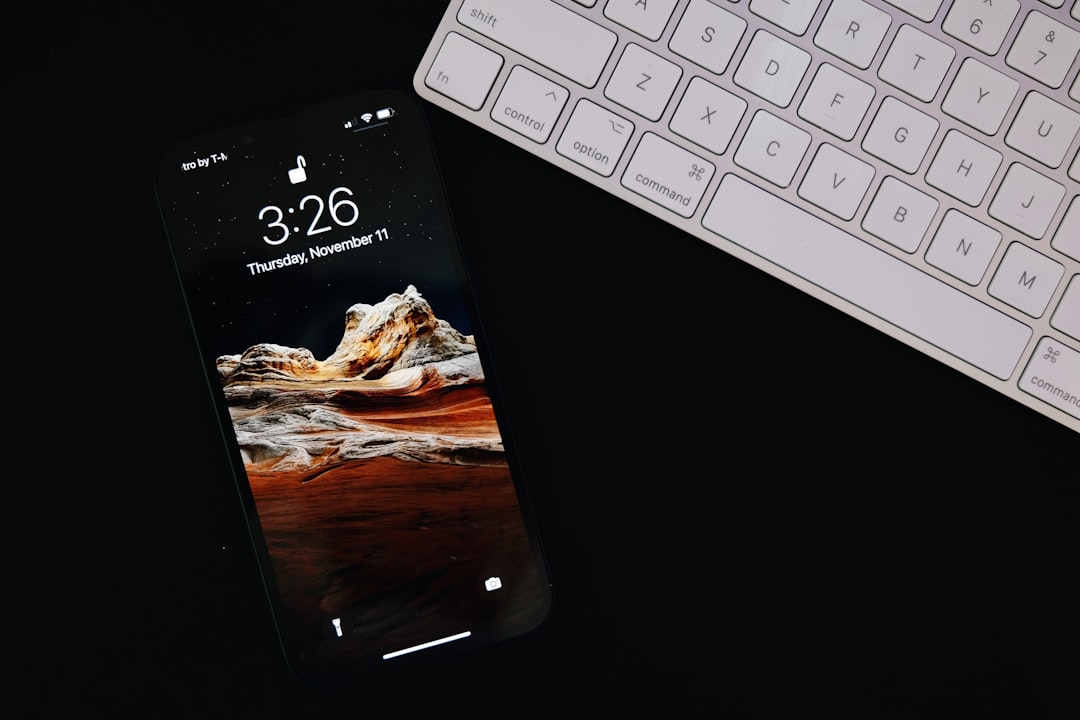
AirDrop is often the best option because it is fast and typically preserves quality. After sending the file to your iPhone, save it to Photos, open Instagram, and upload it as a Story.
Step 8: Add Instagram Native Features
Once the file is on your phone and opened inside Instagram Stories, you can add native elements such as stickers, links, polls, questions, locations, tags, and music. These features can improve engagement because they invite viewers to interact rather than passively watch.
However, use them carefully. Too many stickers can make a Story look unprofessional. If the Story was carefully designed on your Mac, place Instagram elements in open areas of the layout rather than covering important text or faces.
For business accounts, interactive features can be especially valuable. A poll can test audience interest, a question sticker can collect feedback, and a link sticker can direct viewers to a relevant page. The key is to make the interaction meaningful.
Best Practices for Professional Instagram Stories
Working from a Mac gives you more control, but quality still depends on good judgment. Professional Stories should be visually clean, technically correct, and aligned with your audience’s expectations.
- Design for speed: viewers should understand the message almost immediately.
- Use authentic visuals: overly generic content can reduce trust.
- Check spelling and grammar: errors are more noticeable in short-form content.
- Respect accessibility: use captions, strong contrast, and readable text sizes.
- Stay consistent: a recognizable visual style helps build credibility.
- Review analytics: use Instagram insights to learn which Story formats perform best.
It is also sensible to maintain an organized folder system on your Mac. Create folders for raw assets, project files, exports, brand elements, and archived Stories. This makes it easier to reuse successful formats and maintain a consistent publishing schedule.
Common Mistakes to Avoid
One common mistake is designing too much of the Story near the edges. Instagram’s interface can cover parts of the screen, so important text should not sit at the top or bottom. Another mistake is exporting at the wrong size, which can cause cropping or quality loss.
Many creators also overload Stories with text. If your message is too long, divide it into several frames. This improves readability and gives the viewer a more natural sequence to follow.
Finally, do not assume that desktop preview is enough. Always check the final Story on a phone before publishing, especially if the content is for a client, campaign, launch, or paid promotion.
Conclusion
Creating and editing Instagram Stories on a MacBook or iMac is a reliable workflow for anyone who wants more control over design, video editing, and file organization. While Instagram’s mobile app remains the most complete place for final Story publishing, macOS is often the better environment for producing polished visual content.
Use the correct vertical format, edit with mobile viewing in mind, export carefully, and transfer files to your phone when needed. With a disciplined process, your Mac can become the central workspace for creating Instagram Stories that look professional, communicate clearly, and support your broader content strategy.
