Streaming your favorite video. Joining an online class. Hosting a live webinar. Everything is smooth… until it isn’t. Suddenly, you see Error Code 233011. Frustrating, right? Don’t worry. This guide will help you understand it and fix it fast.
TL;DR: Error Code 233011 usually appears when a video fails to load due to browser, network, or server issues. The most common causes include blocked media files, outdated browsers, bad extensions, and unstable internet. Most fixes are simple and take less than 10 minutes. Follow the step-by-step solutions below and you’ll likely be back to streaming in no time.
Let’s break it down in plain English.
What Is Error Code 233011?
Error Code 233011 is a video playback error. It appears when your browser cannot load a media file. Most often, you’ll see a message like:
- “This video file cannot be played. (Error Code: 233011)”
It usually happens on streaming platforms or websites using embedded video players.
The good news? It’s rarely permanent. It’s usually a small setting or connection problem.
6 Common Causes of Error Code 233011
Let’s look at what typically causes this error in 2026.
1. Unstable Internet Connection
This is the most common reason. If your internet drops for even a few seconds, the video may fail.
Streaming video needs steady speed. Not just high speed. Stable speed.
Common signs include:
- Buffering circles
- Low video quality
- Random disconnections
2. Corrupted Browser Cache or Cookies
Your browser stores temporary files to load websites faster. That’s helpful. But sometimes those files get corrupted.
When that happens, the video player may break.
3. Outdated Browser
Browsers update constantly in 2026. Security patches. Media improvements. Bug fixes.
If you’re using an old version, video playback may fail.
Even being one or two versions behind can cause issues.
4. Problematic Browser Extensions
Ad blockers. Privacy tools. Script managers.
They’re useful. But sometimes they block video scripts without warning.
This can trigger Error Code 233011 instantly.
5. Firewall or Antivirus Blocking Media
Your security software might think the media file is unsafe.
It blocks it. The video player can’t access the file. Boom. Error.
6. Server-Side Issues
Sometimes, it’s not your fault at all.
The website’s server may be:
- Down for maintenance
- Overloaded with traffic
- Misconfigured
In this case, you may need to wait.

Step-by-Step Fixes That Work in 2026
Now let’s solve it. Follow these steps in order. Most people fix the issue by Step 3.
Step 1: Check Your Internet Connection
Start simple.
- Refresh the page.
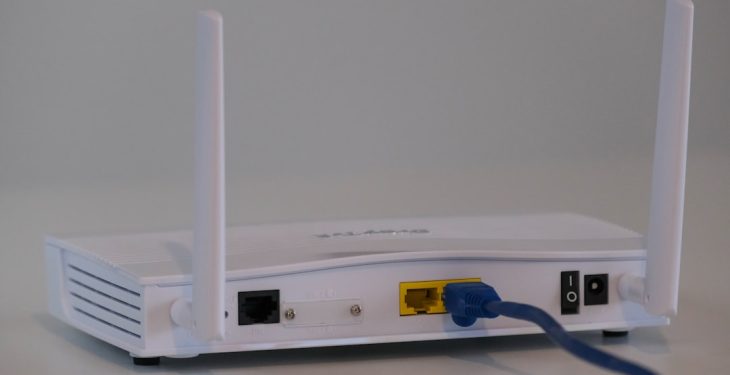
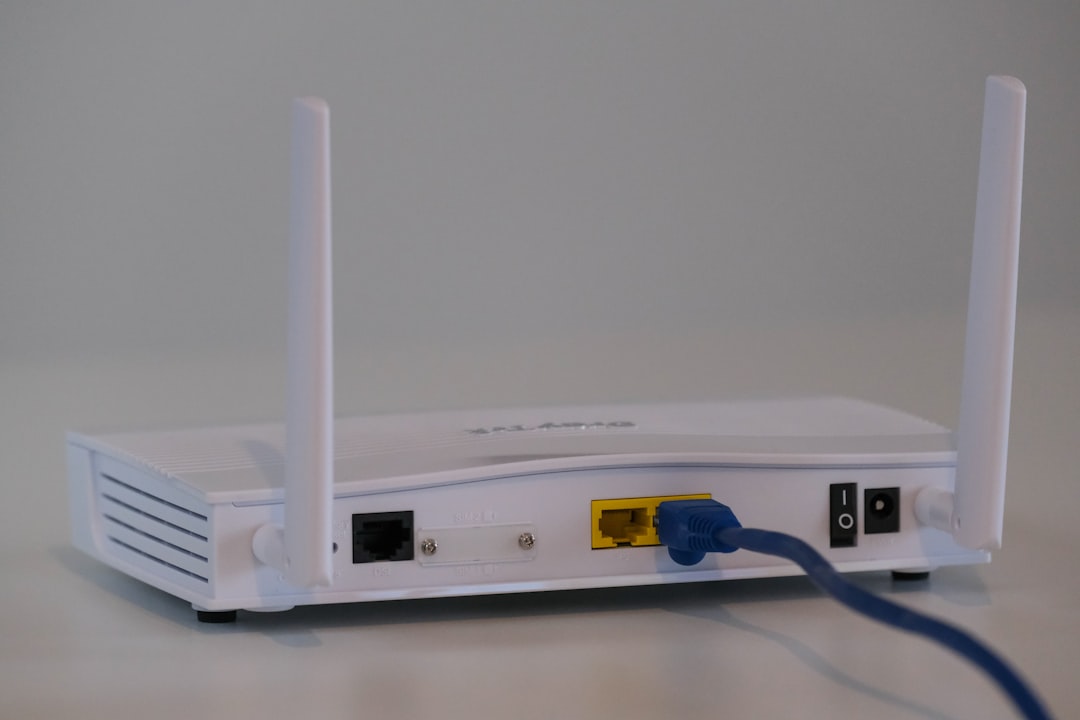
- Restart your router.
- Switch from WiFi to wired connection.
- Run a speed test.
Pro Tip: You need at least 5 Mbps for HD streaming. More for 4K.
If your internet is unstable, contact your provider.
Step 2: Clear Browser Cache and Cookies
This fix works surprisingly often.
Here’s how:
- Open your browser settings.
- Go to Privacy and Security.
- Select Clear Browsing Data.
- Choose Cookies and Cached Images.
- Click Clear.
Restart your browser. Try the video again.
This removes corrupted files and forces a clean reload.
Step 3: Update Your Browser
Running an old version? Let’s fix that.
- Open browser settings.
- Click About or Help.
- Check for updates.
- Install if available.
- Restart the browser.
Modern video players rely on updated codecs and security protocols.
An update often solves playback errors instantly.
Step 4: Disable Extensions (One by One)
Extensions are common troublemakers.
Do this:
- Open your browser’s extensions page.
- Turn off all extensions.
- Reload the video.
If the video works, turn extensions back on one at a time.
When the error returns, you’ve found the culprit.
Ad blockers are the usual suspects.

Step 5: Temporarily Disable Firewall or Antivirus
Only do this briefly for testing.
- Pause your antivirus protection.
- Disable firewall temporarily.
- Refresh the video page.
If the video plays, add the website to your security software’s exceptions list.
Then turn protection back on immediately.
Step 6: Try Another Browser or Device
This isolates the problem.
If the video works elsewhere, the issue is with your original browser.
Try:
- Switching from Chrome to Edge
- Using Firefox instead
- Testing on mobile
If it fails everywhere, it’s likely a server issue.
Advanced Fixes (If Nothing Else Works)
Still stuck? Try these deeper solutions.
Flush DNS Cache
On Windows:
- Open Command Prompt.
- Type ipconfig /flushdns
- Press Enter.
On Mac:
- Open Terminal.
- Type sudo dscacheutil -flushcache
- Press Enter.
This refreshes your network routing.
Disable Hardware Acceleration
Sometimes your GPU conflicts with video playback.
- Go to browser settings.
- Search for Hardware Acceleration.
- Turn it off.
- Restart browser.
This fix works surprisingly well on older laptops.
How to Prevent Error Code 233011 in the Future
Prevention is easier than repair.
- Keep your browser updated automatically.
- Limit the number of extensions you use.
- Restart your router once a week.
- Clear cache monthly.
- Use a reliable internet provider.
Small habits. Fewer headaches.
When It’s Not Your Fault
If you tried everything and it still doesn’t work, take a breath.
The problem may be:
- A broken video link
- Server overload
- Website maintenance
- Regional content restrictions
Check the website’s social media or status page.
Sometimes waiting 30 minutes is the real fix.
Final Thoughts
Error Code 233011 looks scary. But it’s usually a small issue.
Most cases are caused by:
- Internet instability
- Browser cache problems
- Extensions blocking content
The fixes are simple. Clear. Practical.
In 2026, browsers and streaming tech are smarter than ever. Still, tiny glitches happen.
Now you know exactly what to do.
Next time Error Code 233011 appears, you won’t panic.
You’ll fix it in minutes.
And get back to watching.
