Streaming has become a staple for gamers, vloggers, and influencers alike. With tools like Streamlabs, content creators can bring professional-level production to their streams with ease. But what if you want to use your phone as a webcam or a second camera angle? Or perhaps you want to live stream on-the-go directly from your phone via Streamlabs? Fortunately, connecting your phone to Streamlabs is not only possible—it’s relatively easy with the right configuration.
TLDR:
Connecting your phone to Streamlabs allows for flexible streaming setups, offering the chance to use your mobile camera or broadcast live without needing a PC. You can connect via the Streamlabs mobile app or third-party tools like OBS Camera. Ensure your devices are synced over the same Wi-Fi network and configure your stream settings carefully. This guide walks you through each method step-by-step for a smooth setup.
Using the Streamlabs Mobile App
The easiest way to get started is by using the Streamlabs Mobile App. This free app is available for both Android and iOS and allows you to stream directly to various platforms such as Twitch, YouTube, or Facebook.
Steps to Stream from Your Phone Using the Streamlabs Mobile App:
- Download and install the Streamlabs app from the Google Play Store or Apple App Store.
- Sign in using your preferred streaming platform credentials (Twitch, YouTube, etc.).
- Grant permissions for camera, microphone, and storage access when prompted.
- Tap “Go Live” on the main dashboard, then select your platform.
- Adjust stream settings like resolution, frame rate, and bitrate for optimal performance based on your connection.
- Set up widgets and overlays from within the app’s editor.
- Tap “Go Live” again to begin your mobile stream.
With this setup, the phone operates as your complete broadcast studio. The app supports alerts, widgets, overlays, and even donations just like the desktop version.
Connecting Your Phone as a Webcam to Streamlabs Desktop
Sometimes you may want to use your phone’s high-quality camera as a webcam input to your PC while using Streamlabs Desktop for advanced editing and control. For this, you’ll need a tool like Streamlabs Remote Control or third-party apps like OBS Camera or DroidCam.
Method 1: Using Streamlabs Remote Control
Streamlabs offers a remote control feature that turns your phone into a secondary controller for your PC-based Streamlabs setup. While it doesn’t stream video directly from your phone, it’s useful for handling scenes and alerts remotely.
- Open Streamlabs Desktop on your PC.
- Enable Remote Control from Settings → Remote Control.
- On your phone, open the Streamlabs Mobile App and navigate to the Remote Control tab.
- Scan the QR code shown on your Streamlabs Desktop using the mobile app.
This connects your phone as a control accessory rather than a camera source.
Method 2: Using OBS Camera or DroidCam
If you want to use your phone’s camera as a video input for your PC setup, you’ll need apps like OBS Camera (iOS) or DroidCam (Android/iOS).
To Use DroidCam:
- Download the DroidCam client for both your PC and phone.
- Ensure both devices are connected to the same Wi-Fi network.
- Launch the phone app and take note of the IP & port information.
- Launch the desktop app and input the IP address shown on your phone.
- Click Start to begin streaming video from the phone to your PC.
- Open Streamlabs Desktop and add a new video source, choosing DroidCam as the camera source.
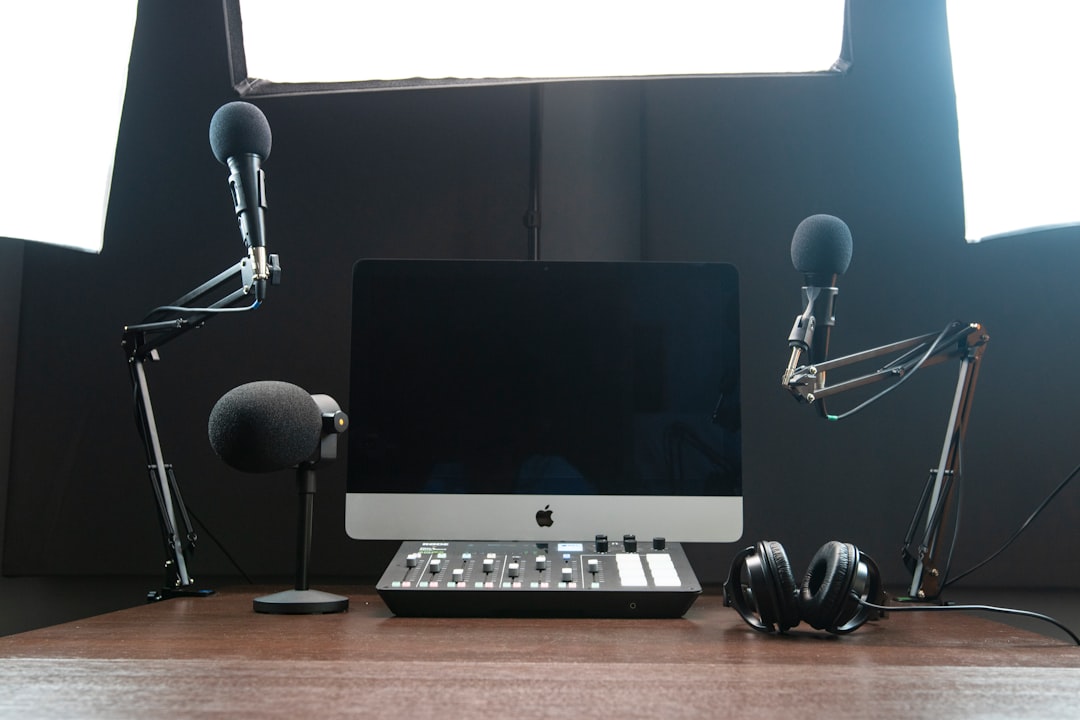
This gives you real-time video from your phone and offers flexibility if you’re trying to create multi-cam setups or just want better video quality than a regular webcam.
Tips for a Stable Connection
When streaming using a mobile phone, especially when connecting it to a Streamlabs desktop setup, stability is key. Here are a few tips:
- Use 5GHz Wi-Fi for faster and more stable connections.
- Close background apps to improve performance on your phone.
- Keep your phone charged or plugged in to prevent unexpected shutdowns.
- Mount your phone on a tripod for steady video quality.
Customizing Your Stream on Mobile
The Streamlabs Mobile App allows fairly extensive customization options:
- Widgets – Add follower alerts, donation notifications, chat boxes, and more.
- Themes – Choose from free and premium overlay themes.
- Audio Controls – Adjust microphone and internal audio levels separately.
- Multi-camera input – Advanced setups can allow toggling between front and back cameras mid-stream.
It’s not quite as powerful as the desktop version, but it’s surprisingly robust for a mobile solution.
Going Live from Your Phone While Using Streamlabs on PC
In certain use cases, you may want to use your phone as an action cam or roving camera while the main stream runs on your PC. Here’s how you can approach that:
- Run Streamlabs Desktop on your PC with your base stream setup.
- Use apps like NDI HX Camera for iOS or IP Webcam for Android to send your mobile video feed through your network.
- Install the NDI plugin for Streamlabs or OBS Studio on your PC.
- Connect your phone feed as an NDI Source inside Streamlabs.
This method is ideal for hybrid streamers who need both mobility and advanced production features.
FAQ
- Q: Can I stream directly from my phone without a PC?
A: Yes, the Streamlabs Mobile App enables you to stream directly from your phone to platforms like Twitch, YouTube, and Facebook. - Q: Is there a delay when using apps like DroidCam or NDI?
A: There can be slight delays depending on your network strength. Using 5GHz Wi-Fi usually reduces latency significantly. - Q: Can I use both my phone and webcam at the same time in Streamlabs?
A: Yes, you can add multiple video sources in Streamlabs and switch between them or show both simultaneously. - Q: Does the Streamlabs Mobile App support widgets and alerts?
A: Absolutely. The app supports most widgets found in the desktop version, including alerts, donation tickers, and subscriber goals. - Q: Do I need to pay for extra features in the Streamlabs mobile app?
A: While the basic features are free, premium themes and some effects are behind a Streamlabs Prime subscription.
Connecting a phone to Streamlabs opens up a new world of possibilities for both beginner and advanced streamers. With just a few basic tools and a little setup, you can dramatically increase the versatility and professionalism of your live content—all from the palm of your hand.
