Accessing a TopStep account is an essential first step for traders who want to practice and prove their trading skills in a risk-free environment. TopStep provides a trading evaluation program where users can earn a funded trading account by demonstrating discipline and profitability. To take advantage of all that TopStep has to offer, users must first understand how to log in efficiently and securely.
TLDR:
Logging into a TopStep account is a straightforward process. Start by visiting TopStep’s official website, then click on the “Login” button on the top right corner. Enter your registered email and password. Use two-factor authentication if it’s enabled, and make sure your credentials are secure. If you’re facing issues, there are troubleshooting steps and support options available.
Understanding the TopStep Platform
TopStep is a proprietary trading company that offers traders a unique opportunity to earn a funded account by completing a structured evaluation process. Before gaining access to their trading dashboard and tools, users must successfully log into their TopStep account.
The login portal gives traders access to:
- Performance dashboards
- Simulated trading accounts
- Trading evaluations and results
- Educational materials and webinars
Logging in is crucial for tracking your progress, managing your account settings, interacting with the TopStep community, and ultimately, climbing toward a funded account opportunity.
Step-by-Step Guide to Logging into a TopStep Account
1. Visit the TopStep Website
Begin by navigating to the official TopStep site. Ensure you are visiting www.topstep.com to avoid phishing or scam websites.
Once on the site:
- Locate the “Login” button on the top right corner of the homepage.
- Clicking the button redirects you to the login portal.
2. Enter Your User Credentials
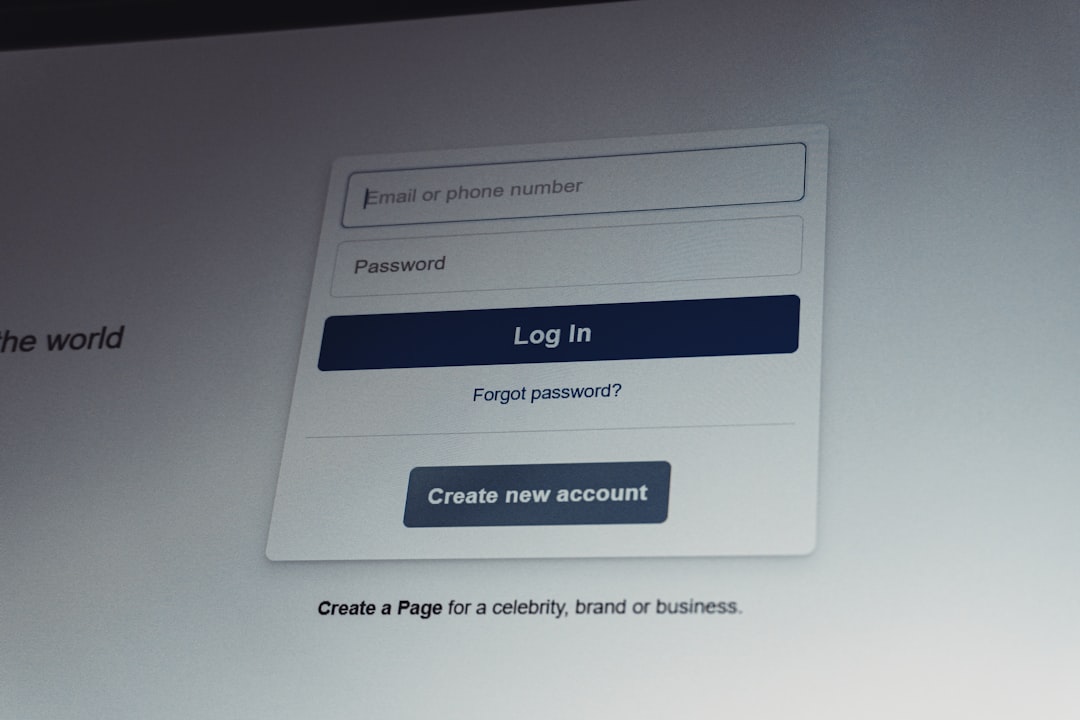
On the login page, input the following:
- Email address used during registration
- Password associated with your account
Make sure your credentials are typed correctly. Passwords are case-sensitive, so check if Caps Lock is mistakenly turned on.
If you’re logging in from a shared or public computer, avoid selecting the “Keep me signed in” option as a security precaution.
3. Enable Two-Factor Authentication (if applicable)
If you’ve enabled two-factor authentication (2FA), you will be prompted to enter a 6-digit code sent to your mobile device or email. This adds an extra layer of security by verifying your identity.
We recommend setting up 2FA in your account settings if you haven’t already. It’s an effective method to protect your trading data from unauthorized access.
4. Press Login and Navigate Your Dashboard
Once you’ve entered the necessary information, click on the “Login” button. If your credentials and authentication code (if applicable) are correct, you will be redirected to your dashboard.
Here’s what you can do on your TopStep dashboard:
- Check your Trading Combine evaluation progress
- Review daily and cumulative trading metrics
- Access educational videos, live webinars, and resources
- Modify profile settings and preferences

How to Login via Mobile Devices
TopStep doesn’t have a dedicated mobile app but their website is optimized for mobile browsers. Here’s how to access your account using a smartphone or tablet:
- Open your mobile web browser (like Safari or Chrome)
- Go to www.topstep.com
- Tap on the “Login” icon located in the hamburger menu or top header
- Enter your login credentials just like on desktop
- Follow the two-factor authentication steps if prompted
The mobile login process is nearly identical to desktop, just more compact and touchscreen-friendly. All trading statistics and account options are accessible from your mobile view.
What to Do If You Can’t Log In
In some cases, users may have difficulty logging into their TopStep account. Here’s how to handle common issues:
1. Forgotten Password
If you’ve forgotten your password:
- Click on the “Forgot Password?” link on the login page
- Enter your registered email address
- Follow the instructions in the reset email sent to your inbox
2. Incorrect Email
Double-check that you’re using the correct email address you used when signing up.
3. Two-Factor Authentication Failure
If you don’t receive your authentication code, you can:
- Check your spam folder if the code was sent via email
- Ensure your smartphone has internet connectivity for app-based authentication
- Contact TopStep support if the system is unresponsive
4. Browser or Network Issues
Clear your browser’s cache or try logging in via a different browser (e.g., Firefox if you’re having trouble on Chrome). Also, check that your network is functioning and not blocking certain sites.
Logging Out Safely
Once you’re finished using your TopStep account, logging out helps ensure your session is secure, especially from shared devices. Here’s how to do it:
- Click your username at the top right of the screen
- Select the “Logout” option from the dropdown menu
If you ever forget to log out, TopStep may time out your session after a period of inactivity, adding an additional layer of security.
Tips for a Secure Login Experience
To maximize your security while logging in:
- Always use strong, unique passwords for your account
- Enable two-factor authentication (2FA)
- Avoid using public or shared networks for logging in
- Keep your antivirus and browser up to date
- Do not share your credentials with anyone
Conclusion
Knowing how to log in to your TopStep account ensures you have full access to trading evaluations, metrics, and educational tools essential for developing as a professional trader. Whether on desktop or mobile, logging in is secure and fast, especially when proper precautions like 2FA are enabled. With the right login habits, every trader can streamline their path toward success with a funded trading account.
FAQ
-
Q: Can I log in using a social media account?
A: No. TopStep does not currently support social media logins. Users must log in using their registered email and password. -
Q: Is there a mobile app available for TopStep?
A: No. While there’s no dedicated app, the website is mobile-optimized, allowing access through any smartphone browser. -
Q: How do I change my email or password?
A: After logging in, go to your profile settings to change your email or password. You may be prompted to verify changes via email. -
Q: Why am I getting an “Invalid login credentials” error?
A: This may occur due to incorrect email or password. Double-check your inputs, and if needed, use the “Forgot Password?” feature. -
Q: Can multiple people use the same TopStep account?
A: No. Each account is tied to an individual and sharing credentials violates TopStep’s terms of service and could lead to suspension.
