Spilling water on a MacBook can be a heart-stopping moment for any user. Whether it happens during a busy workday or while relaxing with a drink nearby, liquid exposure poses a serious threat to the internal components of the device. Acting quickly and correctly can significantly improve the chances of saving the laptop and preventing permanent damage. Understanding the right safety precautions and recovery steps is essential in minimizing both immediate and long-term harm.
TLDR: If water is spilled on a MacBook, it should be powered off immediately and disconnected from all power sources. The device must be dried externally, positioned to drain excess liquid, and left powered off for at least 24–48 hours. Avoid using heat sources or turning it on too soon. Seeking professional inspection as soon as possible greatly increases the likelihood of full recovery.
Immediate Actions to Take
The first few minutes after water contact are critical. Quick but careful action can mean the difference between a minor repair and complete device failure.
1. Power It Off Immediately
If the MacBook is still on, it should be shut down right away. If it is unresponsive, holding the power button until it turns off is necessary. Electricity traveling through wet components significantly increases the risk of short circuits, which can permanently damage the motherboard.
Important: The device should not be tested to see if it “still works.” Turning it on prematurely can worsen internal corrosion.
2. Disconnect All Power Sources
The charger must be unplugged immediately. If any external devices such as USB drives, keyboards, or monitors are connected, they should be removed as well. This reduces additional energy flow and protects connected hardware from damage.
3. Remove Accessible Components
If possible, external accessories and detachable parts should be removed. This includes:
- External mouse or keyboard
- USB devices and SD cards
- Protective cases or covers
For older MacBook models with removable batteries (rare in modern versions), the battery should be safely removed. However, most newer MacBooks have sealed designs, which means internal battery removal should only be done by a professional technician.
Proper Positioning to Drain Water
After powering down and disconnecting accessories, the next step is positioning the MacBook to minimize internal pooling of liquid.
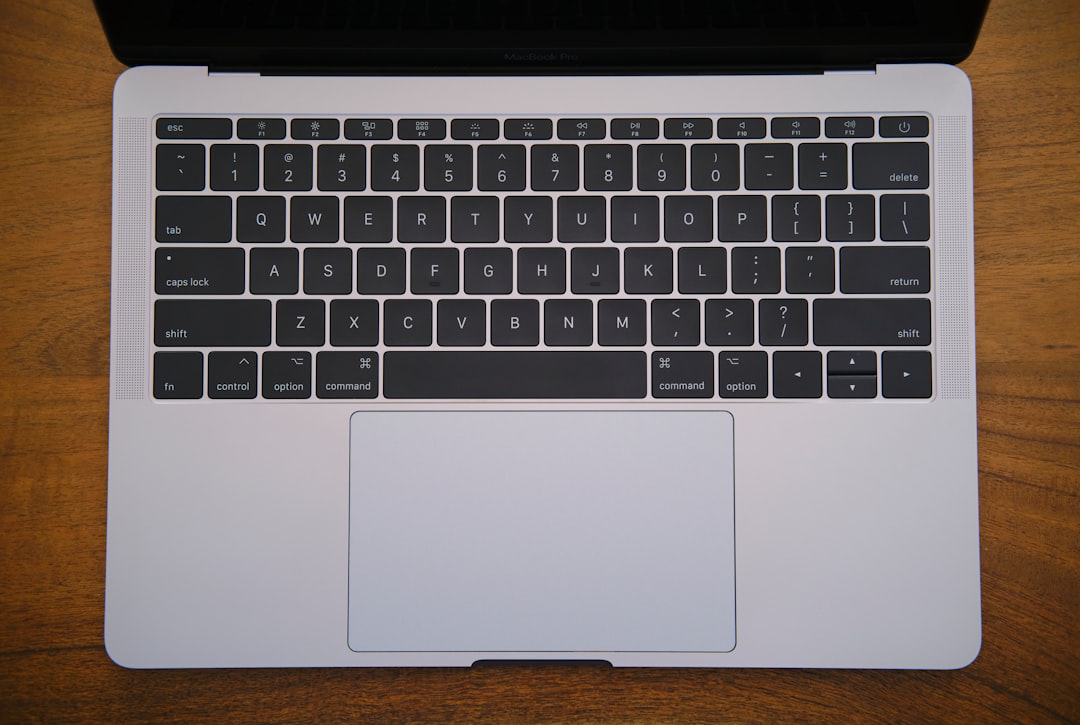
The device should be opened and placed upside down in an inverted “V” or tent position. This allows gravity to assist in draining excess liquid away from the keyboard and internal components. Placing it on a dry towel or absorbent cloth is recommended.
The laptop should never be shaken aggressively, as this can spread water deeper into internal circuits.
Drying the Exterior Safely
Using a soft, lint-free cloth, visible moisture should be gently wiped from the keyboard, screen, and outer casing. Special attention should be given to ports and crevices where water may collect.
Users should avoid:
- Using hairdryers or heat guns
- Placing the laptop in an oven or microwave
- Exposing it to direct sunlight for prolonged periods
Excessive heat can warp components and push moisture further inside. Instead, placing the device in a cool, dry area with good airflow is the safest approach.
Should Rice Be Used?
Placing electronics in rice is a commonly suggested remedy, but it is not considered the most effective solution. While rice can absorb some moisture from the air, it does little to remove water trapped inside tightly packed internal components.
A better approach is to use silica gel packets if available or simply allow the device to air dry in a well-ventilated space. Patience is crucial during this period.
Waiting Before Turning It Back On
One of the most important recovery steps is waiting long enough before attempting to power up the MacBook. Experts typically recommend at least 24 to 48 hours of drying time. For significant spills, even longer periods may be necessary.
Turning the device on too soon can result in:
- Short circuits
- Permanent motherboard damage
- Data loss
Even if the laptop appears dry externally, residual moisture may still be present internally.
Signs of Internal Damage
After sufficient drying time, the MacBook may be powered on carefully. However, warning signs of internal damage should be monitored closely.
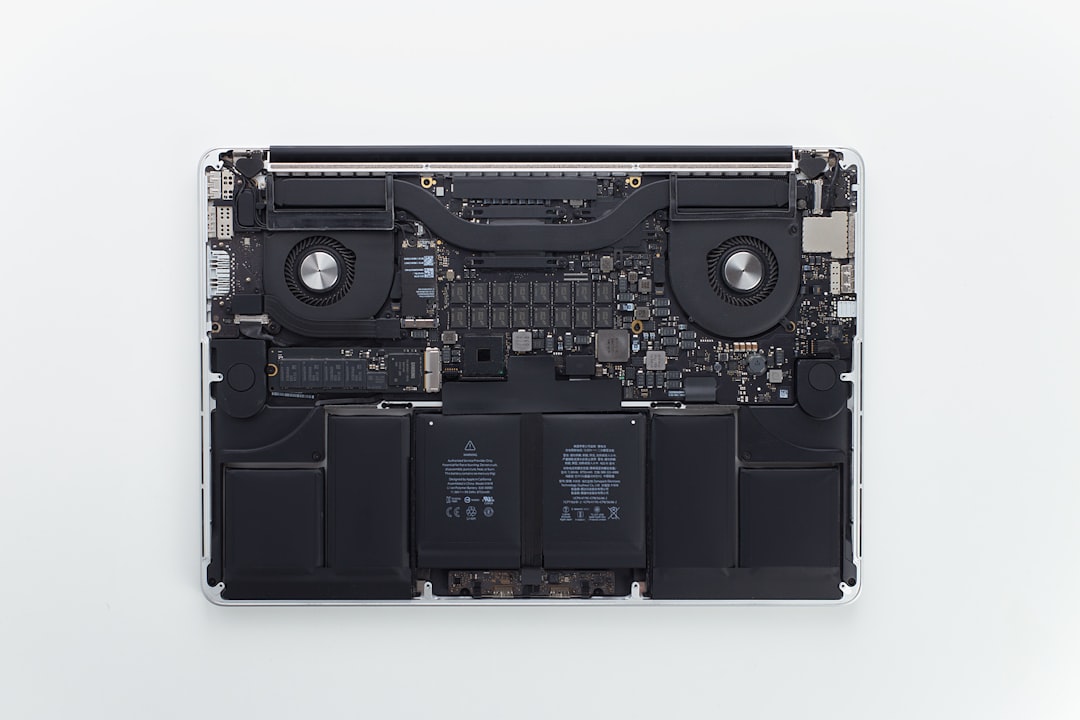
Indicators of possible water-related issues include:
- Flickering or distorted display
- Unresponsive keyboard keys
- Trackpad malfunction
- Overheating
- Strange noises from inside the device
If any of these symptoms occur, the device should be powered off again immediately and taken to a professional repair service.
Why Professional Inspection Is Critical
Even if the MacBook seems to function normally after drying, corrosion can develop over time. Water, especially if it contains minerals or sugars, leaves residue that slowly degrades circuitry.
Professional technicians can:
- Disassemble the MacBook safely
- Clean internal components using specialized solutions
- Identify corrosion or short circuits early
- Replace damaged parts before failure spreads
This preventive step can significantly extend the lifespan of the device.
What If the Spill Was Not Just Water?
Spills involving coffee, soda, juice, or other sugary beverages are more damaging than plain water. Sugars and acids increase corrosion and leave sticky residues that interfere with keyboard and trackpad mechanisms.
In such cases, professional cleaning becomes even more important. Delaying service increases the chances of irreversible damage.
Data Protection Considerations
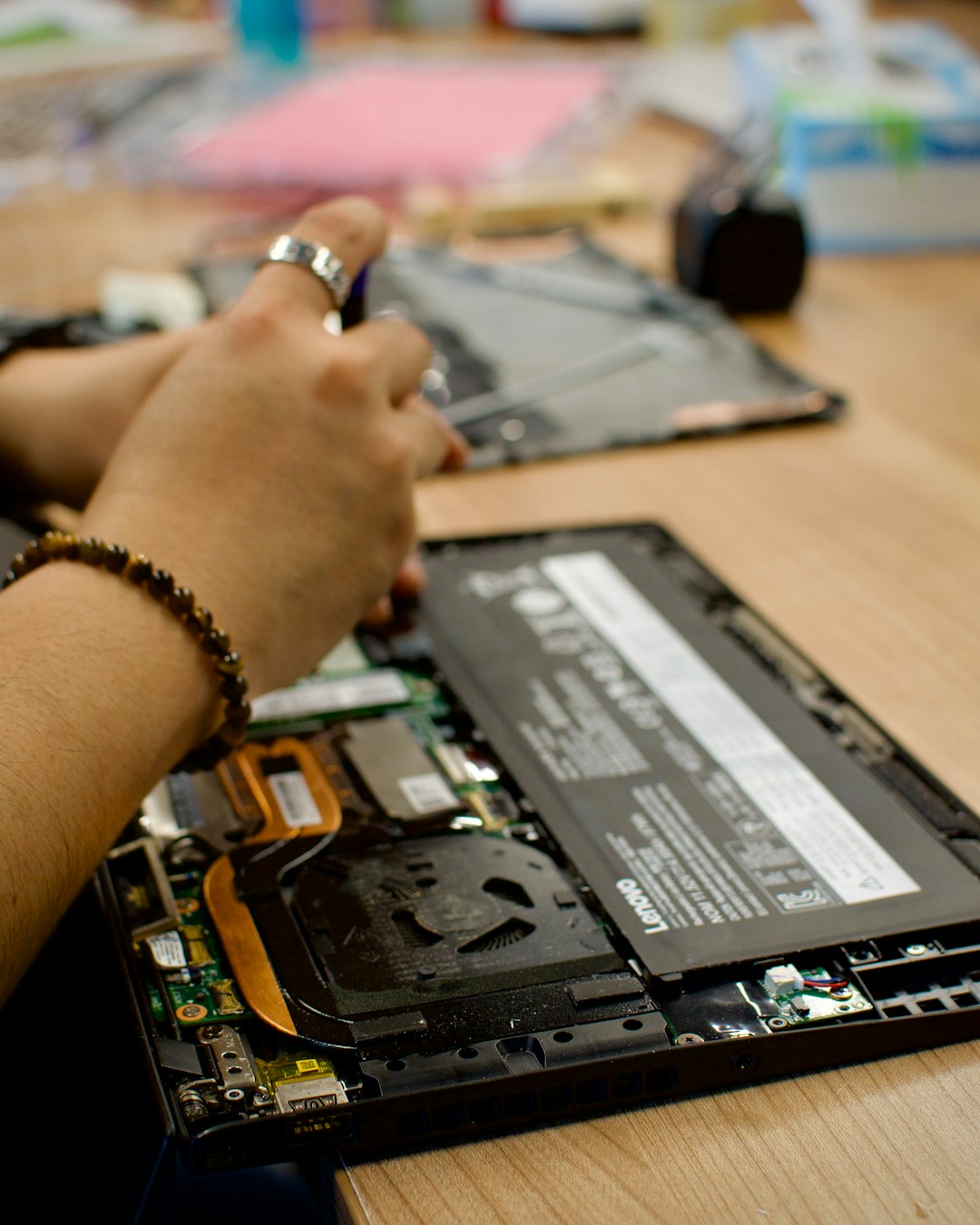
If the MacBook fails to power on after drying, data recovery may still be possible. Modern MacBooks often have soldered storage, meaning professional intervention is required to retrieve files.
For users who maintain regular backups through Time Machine or cloud storage, data loss risks are minimized. This situation highlights the importance of consistent data backup practices.
Preventive Measures for the Future
Although accidents are unpredictable, several precautions can greatly reduce the risk of future spills:
- Keep drinks in spill-proof containers
- Avoid placing liquids directly next to the laptop
- Use a keyboard cover for added protection
- Create a designated, clutter-free workspace
Awareness and habit adjustments provide a strong defense against repeat incidents.
When to Consider Replacement
In some cases, repair costs may exceed the value of the MacBook, particularly for older models. Signs that replacement may be more practical include:
- Severe logic board damage
- Multiple component failures
- Extensive corrosion discovered during inspection
A professional repair estimate can help determine whether replacement is the more cost-effective option.
Frequently Asked Questions (FAQ)
-
Can a MacBook survive a water spill?
Yes, a MacBook can survive if immediate action is taken. Turning it off quickly, drying it properly, and seeking professional inspection significantly improve the chances of recovery. -
How long should it dry before turning it on?
It should dry for at least 24 to 48 hours. For larger spills, waiting longer is safer to ensure all internal moisture has evaporated. -
Is using a hairdryer safe?
No. Heat from a hairdryer can push moisture deeper into components and may damage delicate internal parts. -
Does putting a MacBook in rice help?
Rice may absorb some surface moisture, but it is not very effective for internal components. Air drying in a well-ventilated area is generally better. -
What if the MacBook turns on but the keyboard does not work?
This indicates possible internal damage or residue under the keys. Professional cleaning or part replacement may be required. -
Can water damage appear later?
Yes. Corrosion can develop over days or weeks, even if the device initially appears functional.
Spilling water on a MacBook is undoubtedly stressful, but the outcome largely depends on immediate and informed action. By powering down quickly, drying the device correctly, avoiding common mistakes, and seeking professional evaluation when needed, users can significantly increase the odds of preserving their device and valuable data. Preparedness and patience are the most powerful tools in mitigating water damage.
